
Phones have made screen time awareness mainstream. The weekly report appears automatically, you wince at the numbers, and you move on. Laptops are trickier — the tracking isn’t as visible, the dashboard isn’t sitting on the home screen, and most people genuinely have no idea how many hours they spend staring at their work machine each day. The answer exists on both Windows and Mac, though the depth of built-in tracking differs considerably between the two platforms.
Windows Laptops — What’s Actually Available
Windows does not offer a single unified screen time dashboard the way Android or iOS does. This surprises many users. What it does offer are several overlapping tools that, used together, give you a clear picture of your daily usage.
Method 1: Battery Usage
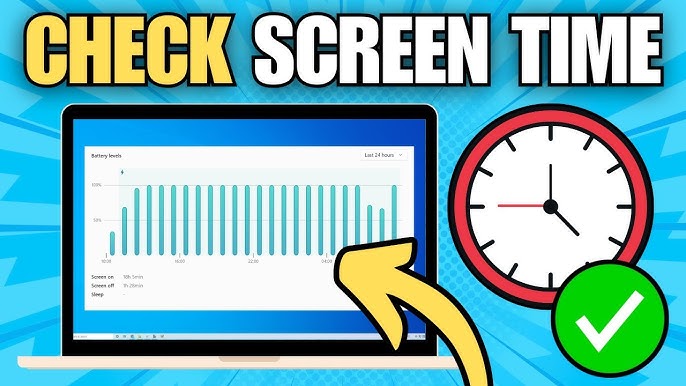
This is the closest Windows gets to a native screen time view. Open Settings → System → Power & Battery (Windows 11) or Settings → System → Battery (Windows 10). Click Battery Usage and set the dropdown in the top-right corner to Last 24 hours or Last 7 days.
The graph shows your screen on/off time, sleep periods, and active usage windows. It’s not labelled “screen time” — but the periods where the screen is active and the device is in use are visible here. For a laptop, this is the most accessible built-in estimation.
Method 2: PowerShell Uptime Check
This shows total time since your last restart — a useful reference for daily active sessions. Open the Windows search bar, type PowerShell, and open it. Enter this command:
(get-date) – (gcim Win32_OperatingSystem).LastBootUpTime
The output shows days, hours, minutes, and seconds since the machine last booted. It’s not app-by-app tracking, but for users who shut down their laptop each night, it gives a reliable daily active session figure.
Method 3: Microsoft Family Safety
For families monitoring a child’s laptop usage, Microsoft Family Safety provides the closest Windows equivalent to a proper screen time dashboard. Visit family.microsoft.com and sign in with the family organiser’s Microsoft account. Once a child account is linked to the family group and active on the laptop, the portal shows daily and weekly device usage, individual app activity, and allows you to set screen time limits and schedules.
This requires setting up a Microsoft Family group in advance. It won’t work retroactively for accounts that weren’t connected before monitoring began.
Mac Laptops — Built-in Screen Time
MacBooks have the most complete native screen time system available on any laptop platform. Apple’s Screen Time feature — originally designed for iPhone — was extended to macOS and gives a thorough breakdown of how every hour on your machine is spent.
Click the Apple menu in the top-left corner and open System Settings. In the left sidebar, select Screen Time. Toggle it on if it isn’t already active and choose This Mac for device-specific tracking (or All Devices if you want aggregated data across your iPhone, iPad, and Mac via iCloud).
The Screen Time dashboard shows:
- App Usage — Total time in every application, broken down by hour and day
- Notifications — How many alerts arrived and from which apps
- Pickups — How many times you opened the lid or woke the display
- Weekly Summary — Comparative view against the previous week
The App Limits section lets you set daily maximums for app categories — Social Networking, Entertainment, Games — after which the apps grey out and require a passcode override to continue. Downtime schedules specific hours where only allowed apps remain accessible, useful for enforcing evening wind-down periods.
Third-Party Tools for Windows
For Windows users who want app-level detail that the built-in tools don’t provide, RescueTime remains the most established option. It runs quietly in the background, logs every application and website visited, and produces daily and weekly reports showing exactly where time went — broken down by category, productivity rating, and individual app. The free tier covers basic usage tracking; the paid version adds goals, alerts, and focus session tools.
MonitUp serves a similar purpose with additional features aimed at team and remote work environments, including productivity scoring and work session tracking.
Chromebook Screen Time
Chromebooks running Chrome OS include Digital Wellbeing in Settings — the same framework available on Android phones. Go to Settings → Digital Wellbeing, enable it, and access a daily breakdown of screen time by app and website. App timers and downtime schedules are configurable from the same menu, making Chromebook tracking the most phone-like experience of the three platforms.
FAQs
Q1. Does Windows 11 have a built-in screen time feature like iPhone?
Not as a standalone dashboard. Battery Usage in Settings gives a usage estimate, and Microsoft Family Safety tracks it for child accounts, but there’s no single screen time tile for individual adult users.
Q2. How do I check total laptop uptime on Windows?
Open PowerShell and run (get-date) – (gcim Win32_OperatingSystem).LastBootUpTime to see the exact time elapsed since the last restart.
Q3. Does Mac Screen Time work across iPhone and MacBook together?
Yes. If Screen Time is enabled on both devices with the same Apple ID and iCloud Screen Time is turned on, the dashboard shows combined usage across all linked Apple devices.
Q4. Can I check which apps I spent the most time on this week on Windows?
Not natively without third-party software. Tools like RescueTime or MonitUp provide per-app weekly breakdowns that Windows doesn’t offer built-in.
Q5. Does Screen Time on Mac affect performance?
No. Screen Time runs as a lightweight background process and has no measurable impact on system performance or battery life.