
Someone needs to send you money. They ask for your UPI ID and you open PhonePe, suddenly unsure exactly where to find it. It’s a common situation — UPI has become so seamlessly embedded into daily transactions in India that most people use it constantly without ever needing to consciously recall their payment address. The moment they do need it, the exact location in the app isn’t immediately obvious.
PhonePe stores your UPI ID in multiple places within the app, and each serves a slightly different purpose. Here’s every way to find it quickly.
What Is a UPI ID and What Format Does It Take
A UPI ID — also called a Virtual Payment Address or VPA — is a unique identifier linked to your bank account through the Unified Payments Interface system. It lets you send and receive money without sharing your actual bank account number, IFSC code, or any sensitive financial details.
In PhonePe, your UPI ID typically follows one of these formats:
- mobilenumber@ybl (the most common PhonePe format — @ybl is Yes Bank’s UPI handle used by PhonePe)
- mobilenumber@ibl (IndusInd Bank handle, used for some PhonePe accounts)
- customname@ybl (if you’ve set a custom VPA)
The handle after the @ symbol indicates which bank processes the UPI transactions, not where your money is held — your actual bank account is linked separately.
Method 1: Profile Icon → My BHIM UPI ID
The most direct path in the current PhonePe interface. Open PhonePe and tap the profile icon in the top-left corner of the home screen. On the profile page, look for My BHIM UPI ID — tap it. Your active UPI ID is displayed here in full.
If you have multiple bank accounts linked to PhonePe, each account has its own separate UPI ID. This screen lists all of them so you can identify which ID corresponds to which bank.
Method 2: Profile → UPI IDs Under Payment Settings
An alternative path that also works clearly. Tap the profile icon in the top-left corner. Scroll down to the Payment Settings section. Tap UPI IDs. All your active UPI IDs linked to every bank account connected to your PhonePe account are listed here with their full addresses.
This view is particularly useful for users with multiple linked accounts who need to confirm which specific UPI ID to share for a particular bank.
Method 3: Bank Accounts Section
From the PhonePe home screen, tap the profile icon, then tap Bank Accounts. Select any linked bank account from the list. The UPI ID associated with that specific bank account is displayed on that account’s details screen.
This method is the most useful when you need to confirm which UPI ID is tied to a specific bank — for instance, verifying that the ID you’re sharing routes payments to your salary account versus your savings account.
Method 4: Receive Money / QR Code Screen
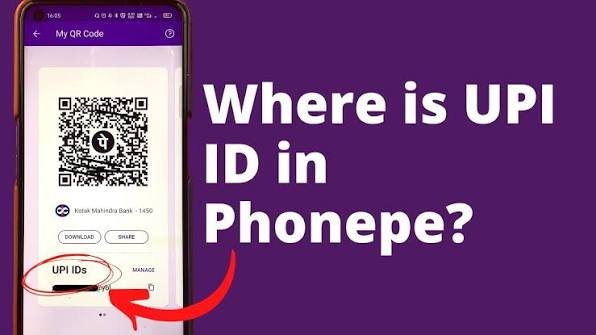
PhonePe’s home screen has a Receive or Scan & Pay section. Tapping Receive Money on the home screen opens a QR code along with your UPI ID displayed below it. This is the fastest option when you need both your QR code and UPI ID ready to share simultaneously — handy at a shop counter, marketplace transaction, or peer payment.
How to Share Your UPI ID Correctly
Once you’ve located your UPI ID, sharing it is straightforward — copy and paste it or read it out. A few things worth confirming before sharing:
Always double-check the complete ID including the handle (the part after @). Entering 9876543210 as a UPI ID won’t work — the format must include the full address like 9876543210@ybl.
For business transactions or receiving larger amounts, sharing your UPI ID is preferable to sharing your QR code image because QR codes can theoretically be altered in screenshots, while a typed UPI ID cannot.
Checking UPI ID When App Access Is Unavailable
If you can’t access PhonePe for any reason — such as a device switch where the app needs re-verification — your UPI ID can also be retrieved through your bank’s own mobile banking app or net banking portal under the UPI settings section, since the VPA remains linked to your bank account independently of the PhonePe app.
5 FAQs
Q1. Can I have multiple UPI IDs in PhonePe?
Yes. Each linked bank account generates its own UPI ID. If you have two bank accounts linked to PhonePe, you have two separate UPI IDs.
Q2. Can I change my PhonePe UPI ID?
Yes. Go to Profile → UPI IDs, select an existing ID, and choose to create a custom VPA. Availability depends on whether your chosen name is already taken.
Q3. Is my UPI ID safe to share publicly?
Sharing your UPI ID to receive payments is safe. Never share your UPI PIN — that’s the 4 or 6 digit code used to authorise payments and must never be disclosed to anyone.
Q4. What does @ybl mean in my PhonePe UPI ID?
@ybl refers to Yes Bank Limited, which is the banking partner that processes PhonePe’s UPI transactions. It doesn’t mean your money is held at Yes Bank — your actual bank account is linked separately.
Q5. My UPI ID isn’t working for receiving payments. What should I do?
Check that your linked bank account is active and the UPI registration is complete. Go to Profile → Bank Accounts and verify the account status. If issues persist, delink and relink the bank account.