
Forgetting a WiFi password is one of those small but genuinely frustrating problems that happens to everyone eventually. You set up the network months ago, your phone connects automatically, and then a guest arrives or a new device needs connecting — and nobody can remember the password. The good news is your phone almost certainly has it saved. Getting to it takes under a minute on both Android and iPhone, as long as you know where to look.
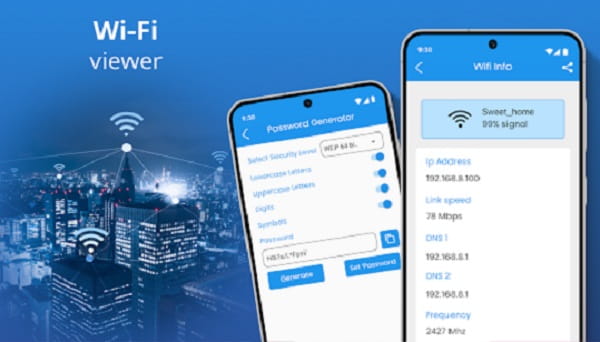
Checking WiFi Password on Android
Android made this significantly easier starting from Android 10, which introduced a built-in password sharing feature that doesn’t require rooting or any third-party app. All modern Android phones running Android 10 and above — which covers virtually every device currently in use — support this method.
Step 1: Open the Settings app and go to Network & Internet (on stock Android) or Connections → Wi-Fi (on Samsung devices running One UI).
Step 2: Tap the WiFi network you’re currently connected to, or tap the gear icon or Settings icon next to the network name.
Step 3: Look for a Share or Share Password option. Tap it. Your phone may ask you to verify your identity using fingerprint, PIN, or pattern lock.
Step 4: A QR code appears on screen — this QR code contains the network’s full credentials including the password. Below the QR code, the actual password is displayed in plain text.
You can share the QR code directly by showing it to another device (most phone cameras can scan it automatically to connect), or simply note down the text password shown below it.
Checking WiFi Password on Samsung Devices
Samsung’s One UI interface places the WiFi settings slightly differently. Open Settings → Connections → Wi-Fi. Tap the gear/settings icon next to your connected network. Scroll down and tap QR Code at the bottom of the screen. The QR code appears with the plain text password displayed underneath. The identity verification step applies here too — fingerprint or PIN required.
Checking WiFi Password on iPhone
Apple introduced the ability to view saved WiFi passwords in plain text with iOS 16, and the feature has been refined since. Every iPhone running iOS 16 or later can access this natively.
Step 1: Open Settings and tap Wi-Fi.
Step 2: Tap the small information icon (i) next to the network name you want the password for — whether it’s your currently connected network or any previously connected network in the list.
Step 3: Tap the Password field. The password appears as dots initially.
Step 4: Authenticate using Face ID, Touch ID, or your device passcode. The password immediately appears in plain text and a Copy button appears alongside it so you can paste it elsewhere.
iPhones running iOS 18 and above can also find WiFi passwords through the dedicated Passwords app. Open the app, authenticate, tap the Wi-Fi category, select the network, and the password is displayed there too.
Checking WiFi Password via Router Admin Panel
If neither phone method works for any reason — perhaps the password was set on a different device and never saved to yours — the router itself always has the answer.
Connect to the WiFi network and open any browser on your phone. Type 192.168.1.1 or 192.168.0.1 into the address bar (these are the two most common router admin panel addresses). Log in with your router’s admin credentials — usually printed on a sticker on the bottom or back of the router. Navigate to the Wireless Settings section and the current network password is visible there.
Checking Password for a Network You’re Not Currently Connected To
Both Android and iPhone save passwords for every network you’ve previously connected to — but accessing them for networks you’re not currently on works slightly differently.
On Android, go to Settings → Network & Internet → Wi-Fi → Saved Networks. Tap any saved network and use the Share/QR code option the same way as with your active connection.
On iPhone, all previously connected networks appear in the Settings → Wi-Fi list. Scroll down past “Other Networks” to find them, tap the (i) icon, and retrieve the password the same way.
5 FAQs
Q: Can I check WiFi password on Android without rooting?
A: Yes. Android 10 and above shows saved WiFi passwords natively through Settings without requiring root access.
Q: Can I see WiFi password on iPhone without Face ID or passcode?
A: No. Apple requires biometric or passcode authentication before revealing any saved password, including WiFi credentials.
Q: What if my Android phone doesn’t show the password below the QR code?
A: Some manufacturer skins display only the QR code. Use another phone’s camera to scan the QR code — it will automatically read the network name and password from the code.
Q: Can I check the WiFi password for a network I connected to months ago?
A: Yes. Both Android and iPhone store passwords for all previously connected networks. Find the network in your saved networks list and retrieve the password the same way.
Q; What are the default router admin login credentials?
A: Most routers use admin/admin or admin/password as defaults. The actual credentials for your specific router are printed on a sticker on the device itself.